Why the Mac screenshot shortcuts are not enough
Shift+Command+3 captures the screen, Shift+Command+4 captures a selection, and Shift+Command+5 opens the Screenshot app. None of them scroll a webpage, so anything below the visible window is left out. They are still the right tool for capturing menus, dialogs, or other apps.
Safari: Web Inspector or Export as PDF
Turn on the developer tools in Safari Settings, under Advanced, with “Show features for web developers”. Open Web Inspector with Option+Command+I, right-click the html element in the Elements tab, and choose Capture Screenshot to save the whole rendered page as an image. For a document instead of an image, choose File > Export as PDF, which keeps selectable text but follows the print layout.
Chrome and Edge: DevTools or the built-in tool
In Chrome, open DevTools with Option+Command+I, press Shift+Command+P, type "screenshot", and choose Capture full size screenshot. Edge on Mac has the same DevTools command and its own Screenshot tool in the Settings and more menu.
Firefox: Take Screenshot
Right-click the page, choose Take Screenshot, and choose Save full page. Download or copy the image.
Use an extension for editing and PDF
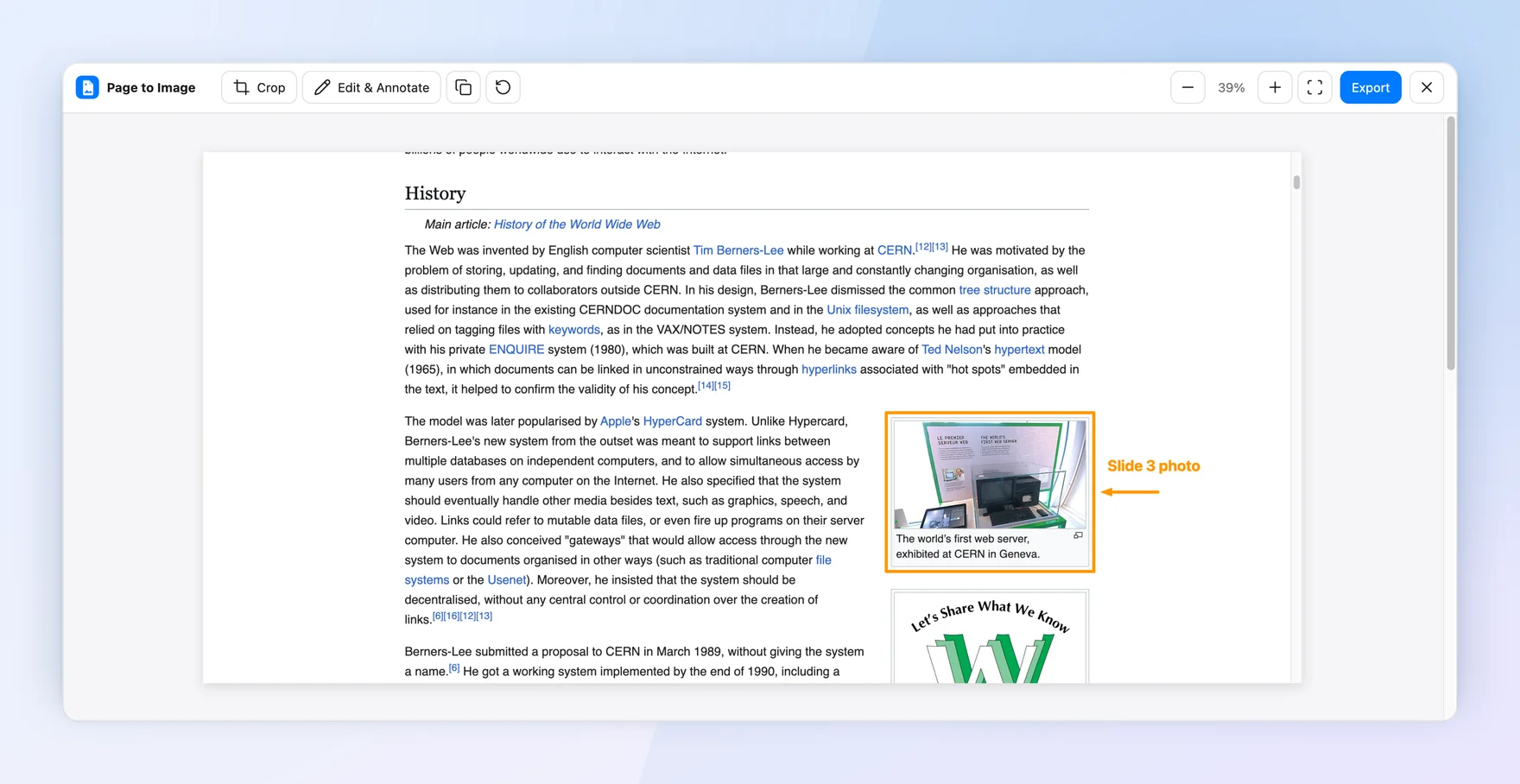
Page to Image works in Chrome, Edge, and Firefox on macOS. It captures the full page, including content that scrolls inside its own panel, then opens Capture review so you can crop, annotate, or blur details and export PNG, JPEG, or PDF. Captures are processed locally on your Mac.