Method 1: Use Edge’s Screenshot tool
Open the page and press Ctrl+Shift+S, or open the Settings and more menu and choose Screenshot. In the capture toolbar, choose the full-page option. Edge opens a preview where you can draw on the capture, then copy it or save it as an image. Microsoft renamed the feature from Web capture to Screenshot, so older versions and some guides still use the former name. Organizations can turn the tool off with a policy, so it may be missing on managed work computers.
Method 2: Use the DevTools full size screenshot
Edge uses the same engine as Chrome, so the DevTools command works the same way. Press F12 to open DevTools, press Ctrl+Shift+P, type "screenshot", and choose Capture full size screenshot. You get a PNG in your Downloads folder with no editing step.
Method 3: Use Page to Image for Edge
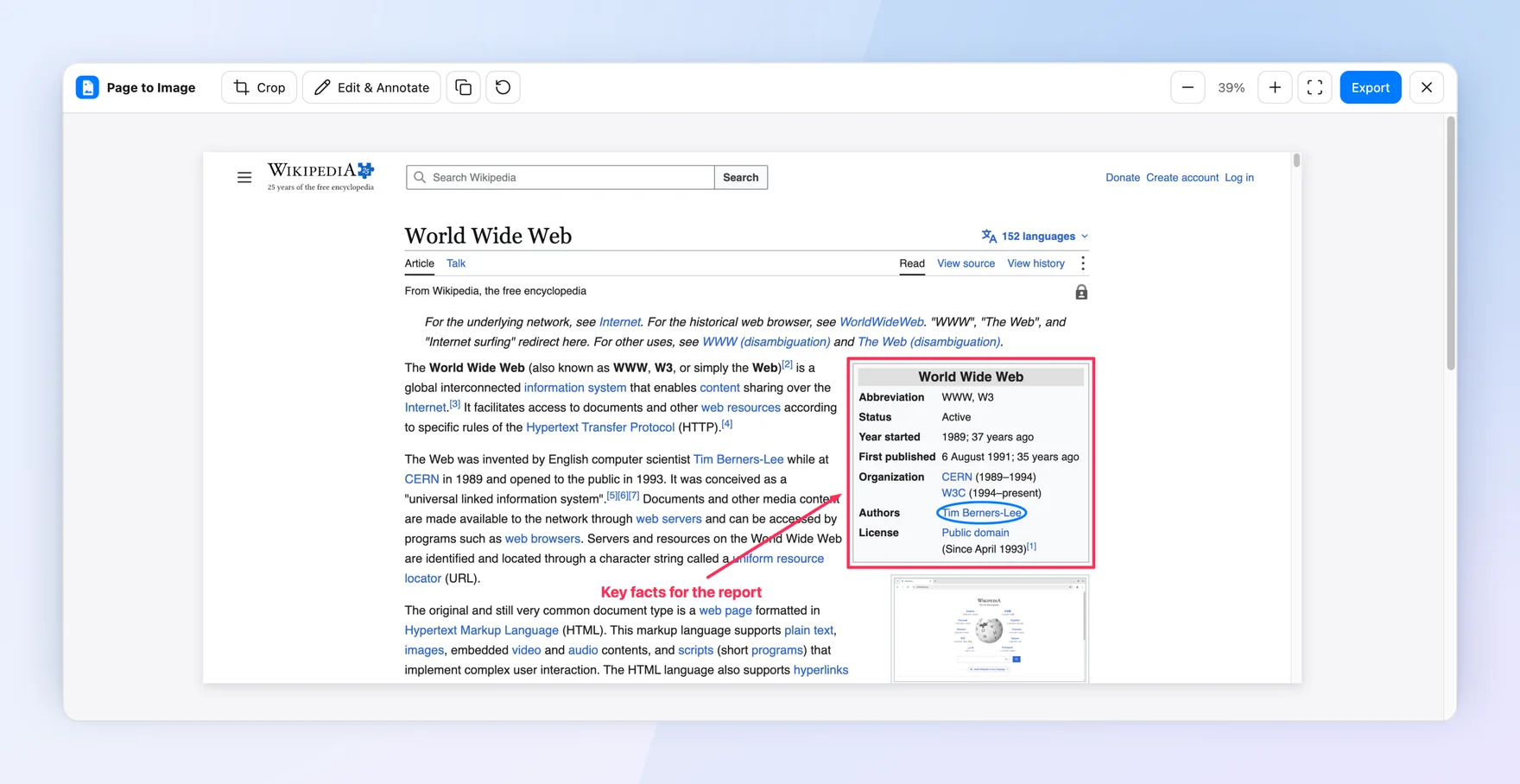
Page to Image is available from the Microsoft Edge Add-ons store. Choose Full page, Visible area, or Selected area, then crop, annotate, or blur details in Capture review before you export PNG, JPEG, or PDF. It follows pages that scroll inside their own content area and keeps the captured resolution instead of shrinking very long pages.
Check the result before you share it
Scroll through the page first so lazy-loaded images appear, and pause videos or carousels that change during capture. If part of the page scrolls inside a sidebar or panel, compare the result with what you see on screen; some tools only capture the main document.