Method 1: Use the DevTools full size screenshot
Open the page, then open DevTools with Ctrl+Shift+I on Windows, Linux, or ChromeOS, or Cmd+Option+I on Mac. Press Ctrl+Shift+P or Cmd+Shift+P to open the Command Menu, type "screenshot", and choose Capture full size screenshot. Chrome saves a PNG of the whole document to your Downloads folder. The same option is in the More options menu of the device toolbar. It is free and needs no install, but there is no crop or annotation step, the output is PNG only, and it captures the main document, so content inside a panel that scrolls on its own can be cut off.
Method 2: Print the page to PDF
Press Ctrl+P or Cmd+P, set Destination to Save as PDF, and save. This works well for articles and receipts when you want selectable text. It is not a screenshot: Chrome lays the page out for paper, applies the site’s print styles, and splits it across pages, so menus, backgrounds, and wide layouts can look different from what you see on screen.
Method 3: Use a full-page screenshot extension
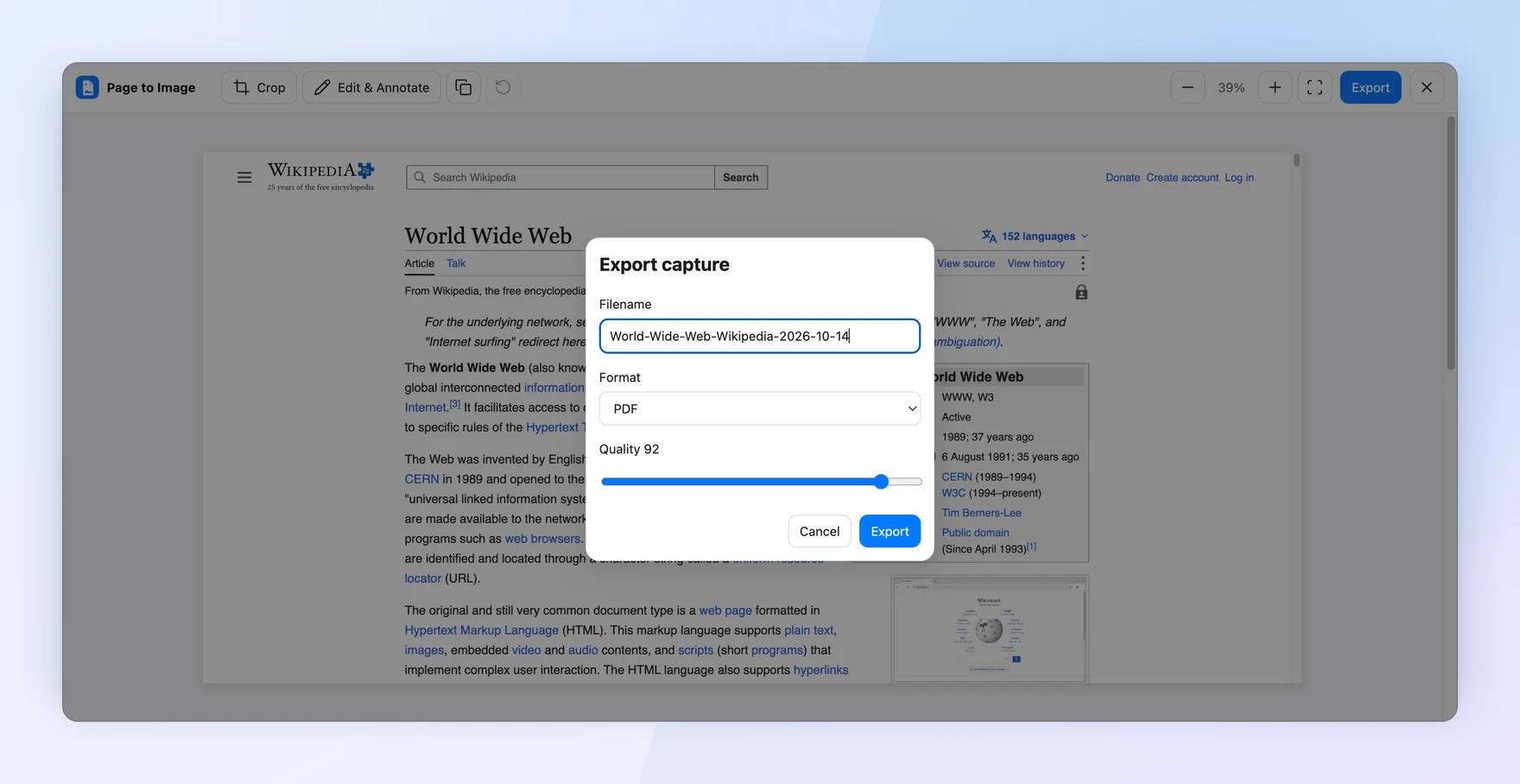
Install Page to Image, open the page, choose Full page, and press Capture page. The extension scrolls through the document, including pages that scroll inside their own content area, and joins the result into one image without quietly reducing resolution. You can hide supported sticky headers and floating elements before capture, then crop, annotate, or blur details in Capture review and export PNG, JPEG, or PDF. Everything is processed locally in your browser.
Which method should you choose?
Use DevTools for an occasional quick PNG of a simple page. Use Print to PDF when you need text you can search or copy. Use an extension when you capture pages regularly, want to mark up the result before sharing, or the page uses an inner scrolling area. Whichever method you use, scroll through lazy-loaded pages first so images and sections below the fold have loaded.